Destructible Meshes
A resource can have a destructible version of its mesh that breaks apart when it is harvested.
| Engine | Asset | Component on the Foliage Actor |
|---|---|---|
| Unreal Engine 5 | Geometry Collection (Chaos) | Geometry Collection Component |
| Unreal Engine 4 | Destructible Mesh (Apex) | Destructible Component |
Step 1: Create the destructible asset
Create the destructible version from the same static mesh that you paint as foliage.
- Unreal Engine 5: select the mesh in a level and create a Geometry Collection with Fracture Mode.
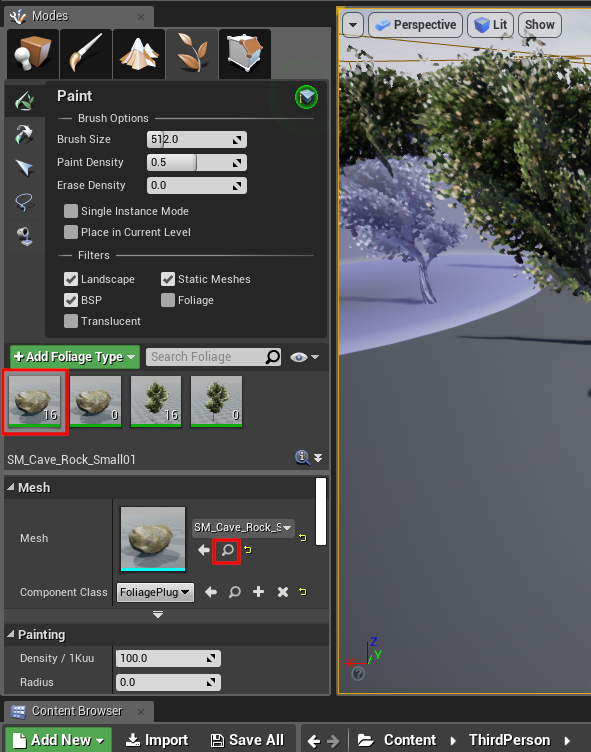
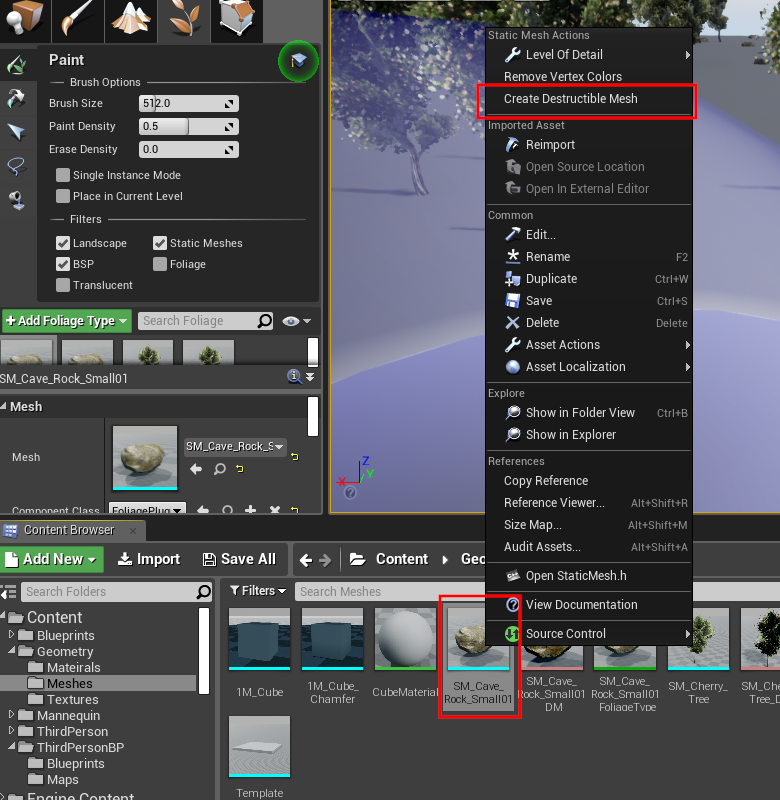
- Unreal Engine 4: right-click the mesh in the Content Browser and select Create Destructible Mesh, as in the screenshots below.
Find the foliage mesh in the Content Browser:
Create the Destructible Mesh:
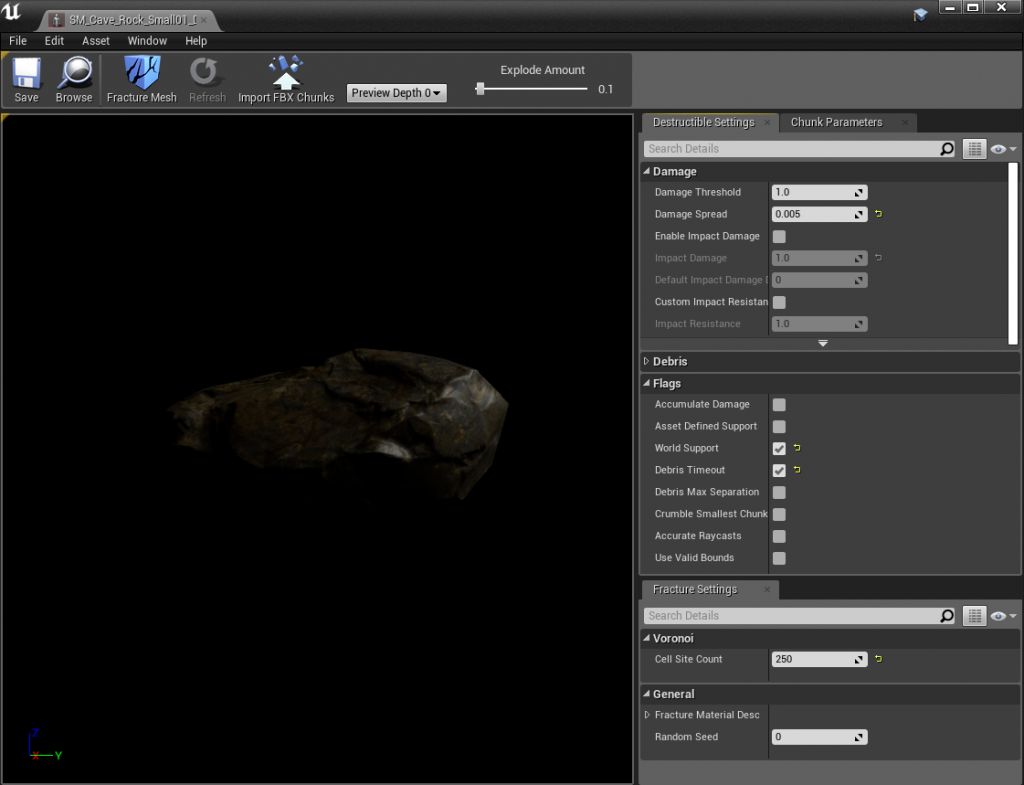
Example settings for a destructible rock:
Step 2: Add it to the Data Table
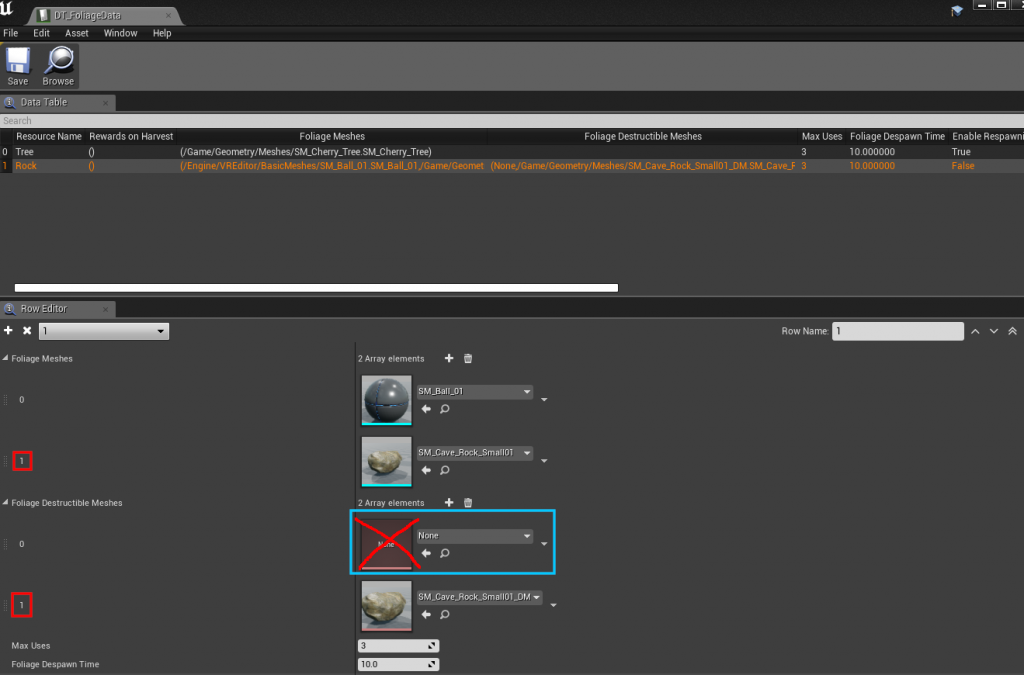
Add the asset to Destructible Meshes in the resource's row.
The destructible asset must have the same index in Destructible Meshes as its mesh has in Foliage Meshes. Leave an entry empty if a mesh has no destructible version.
In this example, the rock at index 1 has a destructible version at index 1, and the mesh at index 0 has none:
Step 3: Add the component to the Foliage Actor
Open your Foliage Actor Blueprint and add a Geometry Collection Component (UE5) or a Destructible Component (UE4).
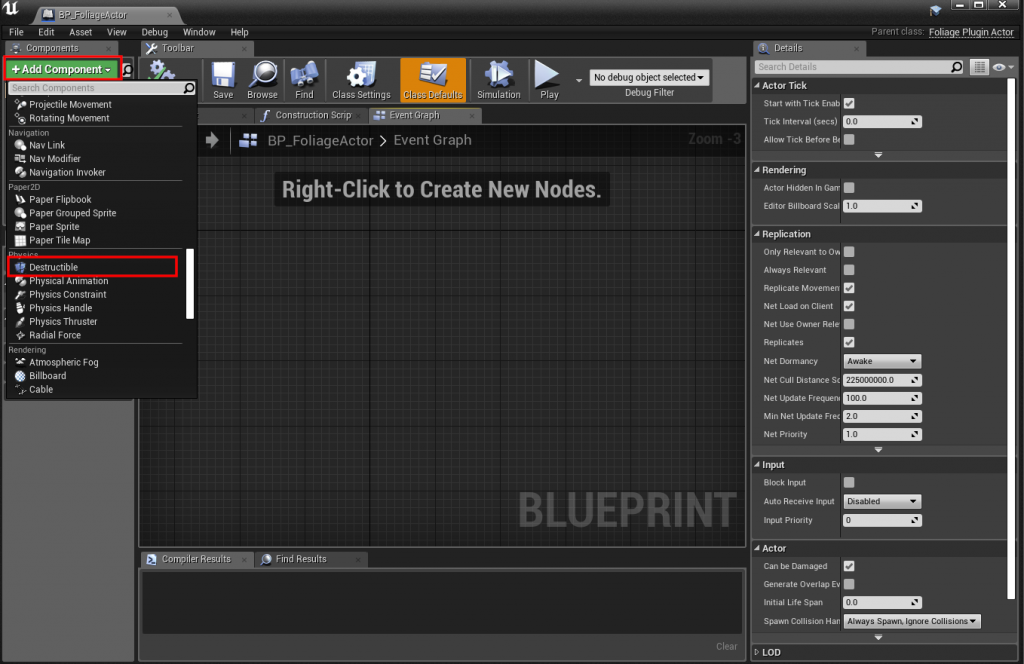
The plugin now handles damage and visibility of the destructible mesh:
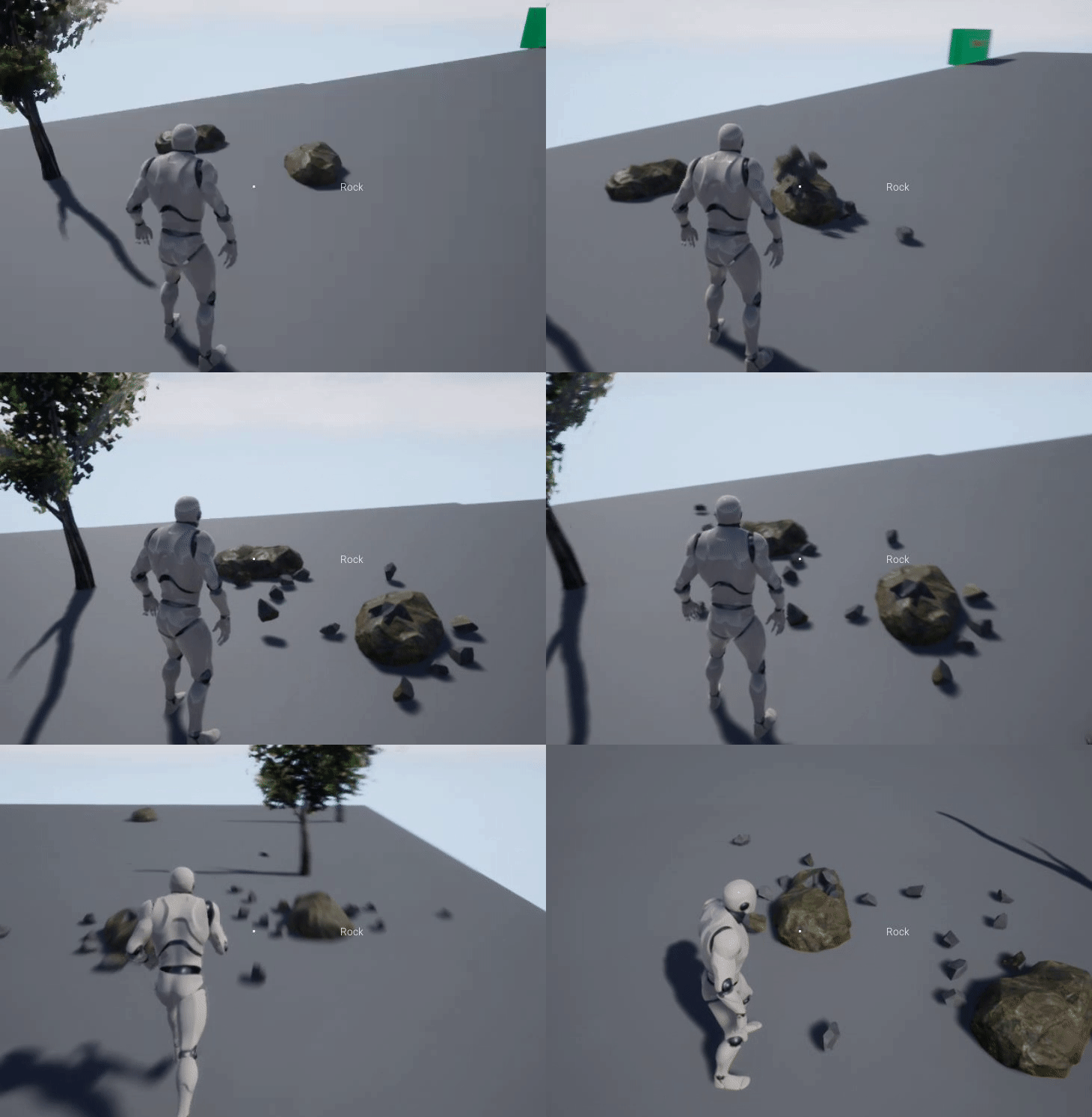
Unreal Engine 5: Field System Actor
In Unreal Engine 5, the Geometry Collection is broken by spawning a Field System Actor at the hit location. The default is the engine's FS_MasterField. You can choose another one with Field System Actor in the Plugin Settings.
To apply the damage in your own way, override Handle Destructible Damage in your Foliage Actor. See Foliage Actor.
Simulating physics on depletion is disabled for resources that have a destructible mesh.